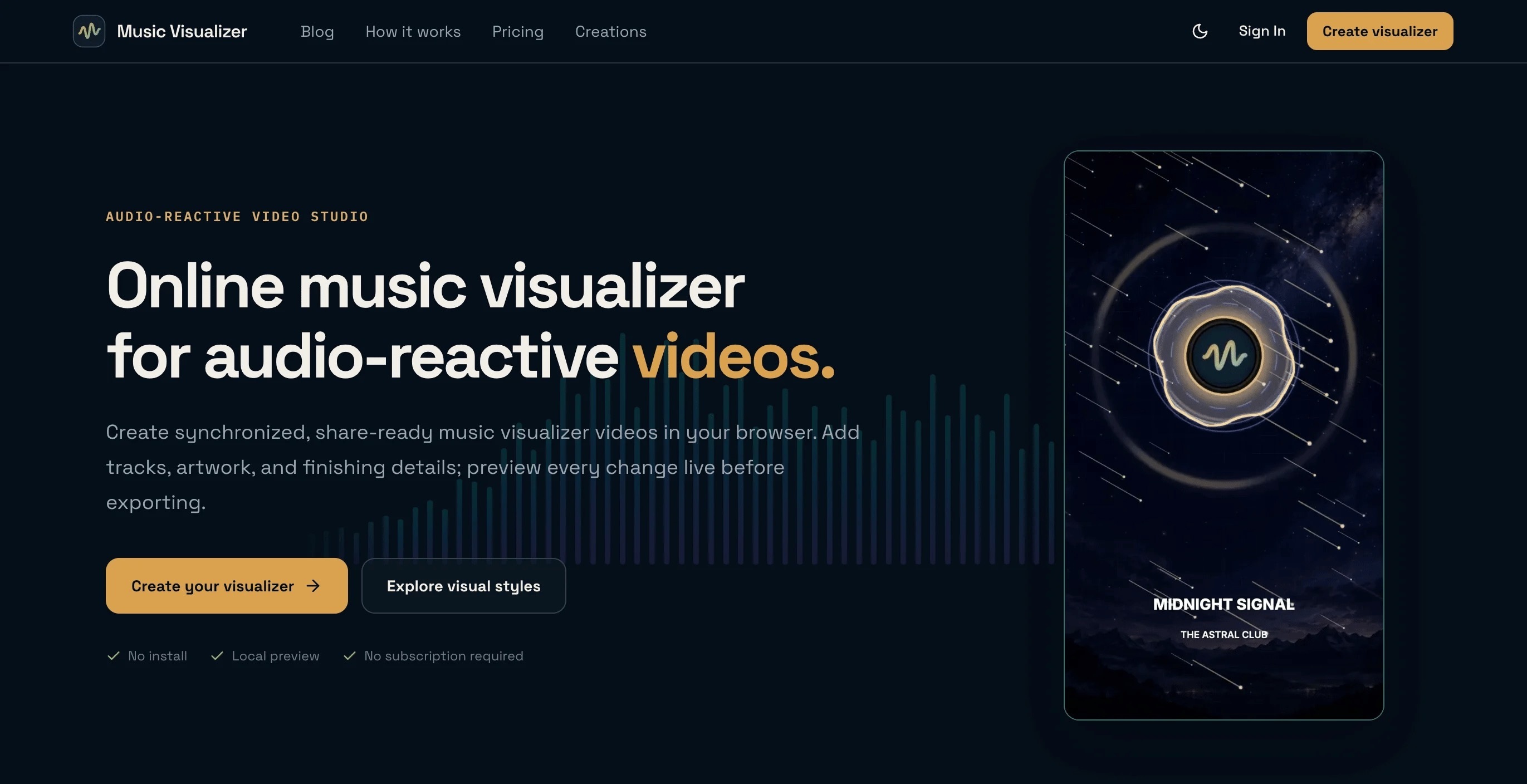

I needed a video for a track I was posting — something for YouTube and a vertical cut for Reels — and I didn’t want to open a full video editor. I used Music Visualizer, a browser tool that turns a track, artwork, and text into an audio-reactive video. Editing is free; paid exports start at 3.9 USD. Here’s the flow that worked for me.

Disclosure: I’m Mint Xu, I made this tool. I’m writing this as the steps I actually take when I need a share-ready clip, not as a pitch deck.
What I was trying to do
A finished audio file isn’t enough for most platforms anymore. YouTube, TikTok, Instagram Reels, and Shorts all expect video. I wanted motion that follows the beat — not a static cover with a looping animation — and I wanted to keep my artwork and title on screen without learning After Effects.
The four steps I use
Pick a visual preset. There are 19 presets across electronic, atmospheric, retro, and minimal styles. I’ve used ones like Liquid Bass, Retro Cassette, Lo-fi, Prism Reactor, Euphoric, and Forest Echo depending on the track. Frequency analysis drives the bars, waves, and pulses, so the motion reacts to the song instead of looping independently.
Add the audio, artwork, and logo. Drop in the track, cover art (you can pan/zoom the crop), and an optional logo. Audio and images stay in the browser while you edit; nothing uploads until you export.
Customize text, colors, format, and intensity. Set the title, tweak colors and animation intensity, and choose the aspect ratio. I usually make a 16:9 version for YouTube and a 9:16 for TikTok / Reels / Shorts. There’s also 1:1 for square posts. Artwork cropping adapts when you switch ratios, so you don’t start from scratch.
Preview, then export. Preview runs live in the browser. When it looks right, export as H.264 at 720p, 1080p, or 2K, up to 60 FPS. Rendering happens in the cloud, so you don’t need a powerful GPU — it also works in modern mobile browsers. Finished videos stay available to download for 14 days.
Tips that saved me time
- Start with the right ratio. Decide YouTube vs vertical first; then adjust the crop so the artwork and text sit where you want them.
- Dial intensity to the track. Dense electronic beats often want stronger motion; quieter or atmospheric tracks look better when you turn intensity down.
- Use the free daily export for short clips. Each account gets one free daily export for audio under one minute — useful for teasers and beat previews before you spend credits on a full track.
- Credits, not a subscription. Editing and preview stay free. Exports use credits you buy once (packs start at 3.9 USD; they don’t expire). 720p/1080p costs 1 credit and 2K costs 2. If a render fails because of a system error, credits come back automatically.
What I’ve used it for
Official audio videos, album visuals, release teasers, beat previews, DJ mix visuals, and podcast episode clips with artwork plus a logo and responsive motion. Same edit, different formats when I need both wide and vertical.
If you just need a clean, beat-synced video from a track and a cover — without a full NLE — try it here: https://musicvisualizer.net/



Top comments (0)